
Choose a gaming laptop that can handle your coursework and the games you play while fitting your budget, schedule, and campus routine. This guide is for students comparing models before buying, including first-time laptop shoppers. Allow 1-3 hours to list your needs, compare a few options, and check return and warranty terms. You should finish with a short list of suitable models and a clear reason for choosing one.

Get movie nights delivered free with Prime
- Fast, free delivery on millions of items
- Prime Video, Amazon Music and more included
- Member-only deals all year
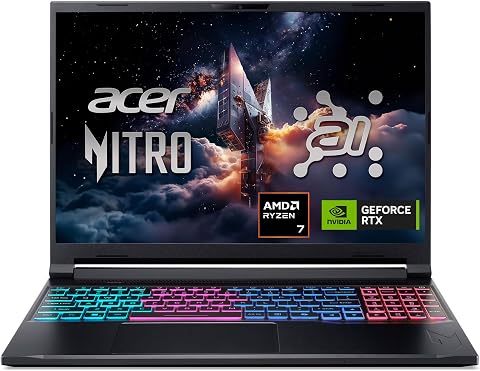
Acer Nitro V 16S AI Gaming Laptop, Ryzen 7 260, RTX 5060, 16-Inch WUXGA 180Hz Display, 32GB DDR5, 1TB SSD
- ✔ Processor: AMD Ryzen 7 260
- ✔ Graphics: NVIDIA GeForce RTX 5060 Laptop GPU, 8GB GDDR7
- ✔ Display: 16-inch IPS, 1920 x 1200, 180Hz, 100% sRGB

ASUS ROG Strix G16 Gaming Laptop, 16-inch FHD+ 165Hz, Intel Core i7-14650HX, NVIDIA GeForce RTX 5060, 16GB DDR5, 1TB SSD
- ✔ Processor: Intel Core i7-14650HX
- ✔ Graphics: NVIDIA GeForce RTX 5060 Laptop GPU, 8GB
- ✔ Display: 16-inch, 1920 x 1200, 165Hz, anti-glare film

HP Victus 15.6-Inch FHD 144Hz Gaming Laptop, Intel Core i5-12450H, NVIDIA GeForce RTX 3050, 16GB RAM, 512GB PCIe SSD, Windows 11…
- ✔ Processor: Intel Core i5-12450H, up to 4.4GHz
- ✔ Graphics: NVIDIA GeForce RTX 3050, 6GB GDDR6
- ✔ Display: 15.6-inch IPS, 1920 x 1080, 144Hz, anti-glare, 250 nits
Difficulty: Beginner | Time: 1-3 hours
What You’ll Need
Tools & Materials:
- A phone or computer with internet access
- A notes app or spreadsheet for comparing models
- A list of your courses and the games or applications you use
- Your maximum budget, including tax and essential accessories
Knowledge:
- Your school’s software and computer requirements, if available
- The games you expect to play and their published system requirements
- A rough idea of how often you will carry the laptop between classes
Check course requirements with your department before shopping. Some programs require specific operating systems, graphics hardware, memory, or ports. Prices and model configurations vary by region; compare the exact configuration and seller terms, not just the laptop’s name.
Acer Nitro V 16S AI Gaming Laptop, Ryzen 7 260, RTX 5060, 16-Inch WUXGA 180Hz Display, 32GB DDR5, 1TB SSD
The Acer Nitro V 16S AI is the most balanced choice here for a student who wants modern gaming capability alongside enough memory for demanding multitasking. Its RTX 5060 Laptop GPU puts it in the same graphics class as the ASUS ROG Strix G16, while 32GB of DDR5 gives it twice the listed memory of the ASUS and HP. That extra headroom can help when coursework, browser tabs, and game launchers compete for resources.The 16-inch, 1920 x 1200 display pairs a 180Hz refresh rate with 100% sRGB coverage, so it offers both smooth motion and a stated color range suited to visual projects. Compared with the HP’s 144Hz Full HD display, it gives more vertical workspace and a faster refresh rate. Acer lists the laptop at 4.6 pounds, substantially less than the ASUS at 2.65 kg and the HP at 7 pounds, making it the clearest travel pick by the supplied figures.There are limits: the 65Wh battery does not come with a runtime claim, and a high-refresh gaming laptop should not be assumed to last a full school day unplugged. The memory is already at its stated 32GB maximum, so we cannot count on future RAM expansion. This is the best fit for students who value a capable, ready-to-use configuration and can plan around charging.
Pros:
- RTX 5060 Laptop GPU with 8GB GDDR7 and DLSS 4 support.
- 32GB DDR5 memory and a 1TB PCIe Gen 4 SSD.
- 16-inch 180Hz display with 100% sRGB coverage.
- Listed weight of 4.6 pounds, below the other two options.
Cons:
- 32GB is the stated maximum memory, leaving no listed RAM headroom for upgrades.
- 65Wh battery is specified, but no battery runtime is provided.
- Display is non-touch.
Best for: Students who want RTX 5060 graphics, substantial memory, a color-capable high-refresh screen, and the lowest listed weight among these three.
Not ideal for: Students who need a touchscreen, plan to expand RAM beyond 32GB, or require proven all-day battery life away from an outlet.
Bottom line: For students who want the strongest mix of graphics, memory, display, and listed portability, the Acer is the most convincing all-round choice.
“For students who want the strongest mix of graphics, memory, display, and listed portability, the Acer is the most convincing all-round choice.”
ASUS ROG Strix G16 Gaming Laptop, 16-inch FHD+ 165Hz, Intel Core i7-14650HX, NVIDIA GeForce RTX 5060, 16GB DDR5, 1TB SSD
The ASUS ROG Strix G16 is the performance-focused alternative to our Acer pick. It also has an RTX 5060 Laptop GPU and 1TB SSD, but uses an Intel Core i7-14650HX and lists a vapor chamber, tri-fan cooling, and liquid metal. Those components make it the option to consider for students who expect long gaming sessions and value a cooling system designed for sustained workloads.Its 16-inch 1920 x 1200 display runs at 165Hz, close to the Acer’s 180Hz, although the listing does not provide the Acer’s 100% sRGB color claim. The Strix also starts with only 16GB of RAM, half the Acer’s configuration, but its tool-free RAM and SSD access make it easier to service or upgrade. Wi-Fi 7 is the newest wireless standard in this group. The 90Wh battery is the largest stated capacity here, yet the listing also reports just two hours of battery life; students should treat that runtime as a serious limitation, not assume the larger capacity means long time away from a charger.At 2.65 kg, the ASUS is heavier than the Acer’s listed 4.6 pounds, and it is still a substantial machine to carry across campus. We’d choose it over the Acer when cooling features and accessible components matter more than ready-to-go memory and lower listed weight. Skip it if you need a dependable unplugged study companion.
Pros:
- RTX 5060 graphics with 8GB dedicated graphics memory and DLSS 4 support.
- Vapor chamber and tri-fan cooling system with liquid metal thermal compound.
- Tool-free access to RAM and SSD, supporting easier upgrades.
- 90Wh battery capacity and Wi-Fi 7 are listed.
Cons:
- Listed battery life is only two hours.
- At 2.65 kg, it is heavier than the Acer by the provided weight figures.
- Starts with 16GB RAM, while Acer includes 32GB.
Best for: Students who prioritize a dedicated cooling system, Wi-Fi 7, and tool-free access to memory and storage for later upgrades.
Not ideal for: Students who carry a laptop all day or need long battery runtime; the supplied listing gives a two-hour battery figure and a 2.65 kg weight.
Bottom line: Choose the Strix when cooling and upgrade access outrank campus portability and battery runtime.
“Choose the Strix when cooling and upgrade access outrank campus portability and battery runtime.”
HP Victus 15.6-Inch FHD 144Hz Gaming Laptop, Intel Core i5-12450H, NVIDIA GeForce RTX 3050, 16GB RAM, 512GB PCIe SSD, Windows 11…
The HP Victus 15.6 is the less ambitious gaming configuration in this lineup. Its RTX 3050 with 6GB GDDR6 is a step below the RTX 5060 graphics in both the Acer and ASUS, so students choosing it should be comfortable with a more modest graphics tier. The listing does not provide game-specific performance, but the difference in GPU class is a meaningful reason to rank it third for gaming capability.Its 15.6-inch, 1920 x 1080 anti-glare screen runs at 144Hz, still a high-refresh option for coursework and play. Compared with the two 16-inch laptops, the smaller display may suit a student who prefers a more compact screen, although the listed 7-pound weight undercuts its travel appeal. It also comes with 16GB RAM and a 512GB SSD, half the storage of the other two. The description says the memory can expand to 64GB, which gives it an upgrade path the Acer does not have according to its stated maximum.Windows 11 Pro, Ethernet, Wi-Fi 6, and a backlit keyboard round out a useful school setup. The 250-nit brightness specification may be limiting in bright spaces, and the listing provides no battery capacity or runtime. The Victus makes sense if its RTX 3050 tier is enough for the games a student plans to play and memory expansion is valuable; students seeking a longer-term graphics cushion should favor one of the RTX 5060 models.
Pros:
- 15.6-inch anti-glare Full HD display with a 144Hz refresh rate.
- RTX 3050 graphics with 6GB GDDR6 memory.
- Description states RAM can expand up to 64GB.
- Includes Windows 11 Pro, Wi-Fi 6, Ethernet, and a backlit keyboard.
Cons:
- RTX 3050 is a lower graphics tier than the RTX 5060 GPUs in the other picks.
- 512GB SSD is half the listed capacity of the Acer and ASUS.
- Listed weight is 7 pounds and display brightness is 250 nits.
Best for: Students who want a 15.6-inch Full HD screen, Windows 11 Pro, wired Ethernet, and stated RAM expandability for a less demanding gaming setup.
Not ideal for: Students prioritizing stronger graphics, larger built-in storage, bright-screen use, or a light campus carry.
Bottom line: The Victus is a reasonable entry point for students with moderate gaming needs, but the Acer and ASUS provide a stronger graphics tier and more storage.
“The Victus is a reasonable entry point for students with moderate gaming needs, but the Acer and ASUS provide a stronger graphics tier and more storage.”
As an Amazon Associate we earn from qualifying purchases.
Before You Start
Set a firm spending limit before comparing models. Include tax and any required accessories, such as a protective sleeve, headset, or external storage. A gaming laptop can cost less at first but require a charger access point during long days, so assess portability and battery life alongside frame rates. Never assume a product listing’s headline specification applies to every configuration in that model family.
Step-by-Step Instructions
Step 1: List your study and gaming requirements
Write down the applications required by your courses, the games you play, and the resolution or visual settings you hope to use. Check official software and game requirement pages. Note whether your work involves demanding tasks such as 3D rendering, video editing, engineering simulations, or local machine learning. Include everyday needs too: video calls, web research, document editing, and access to your school’s platforms.
Use these notes to sort requirements into must-haves and preferences. A required engineering application may set a higher graphics or memory requirement than your games. If your school publishes recommended laptop specifications, use those as the starting point.
Tip: Do not buy based on a game’s minimum requirements alone. Minimum specs may run a game at reduced settings; check recommended specs and independent tests for the resolution you plan to use.
Check: You have a written list of required applications, games, and any school-issued computer specifications.
Step 2: Set your total budget
Choose the highest amount you can spend without relying on uncertain future sales or upgrades. Add tax and accessories to the figure. If you are comparing financing offers, calculate the full amount payable and check the terms before treating a monthly payment as affordable.
Keep a little room in the budget for a sleeve or a mouse if you need one, but do not add accessories just because they are bundled. A larger power adapter can be useful at a desk but adds weight to a daily campus bag.
Tip: Check whether the manufacturer or retailer offers a student discount, and compare the final checkout price with other sellers.
Check: You know your maximum total spend and the portion available for the laptop itself.
Step 3: Choose a performance level that matches your work
Compare processor, graphics chip, memory, and storage for each candidate. Use your course requirements and the recommended specs for your games to decide what level you need. For gaming, the graphics chip usually has the largest effect on performance; for specialized coursework, confirm the software’s own hardware guidance.
Check memory capacity and whether it can be upgraded. Look for enough storage for games, applications, and course files, and confirm whether a second storage slot is available if you expect to expand later. Compare reviews of the exact graphics configuration where possible, because the same chip name can perform differently in laptops with different cooling and power limits.
Tip: Prioritize hardware that meets a real requirement. Paying extra for a top-tier graphics chip may add cost, heat, and weight without helping your classes or the games you play.
Check: Each model on your shortlist meets your school’s stated requirements and the recommended specs for your intended use.
Step 4: Check screen, weight, and battery needs
Compare screen size, resolution, brightness, and refresh rate. A higher refresh rate can make supported games look smoother, while a sharp, readable screen helps with coursework. Consider whether the display is comfortable for reading and whether the laptop can connect to an external monitor when you study at a desk.
Check the laptop’s weight and the weight of its power adapter. Read reviews for battery results during light tasks such as web browsing, not just manufacturer estimates. Gaming laptops usually need to be plugged in for full gaming performance, so plan for a suitable outlet when you play.
Tip: If you commute between classes, count the laptop, adapter, and other daily items together. A light laptop with a bulky power brick may still be tiring to carry.
Check: The screen suits your work, and the combined carrying weight and realistic battery life fit your usual campus day.
Step 5: Compare cooling, noise, and ports
Read reviews that describe temperatures, fan noise, and performance during longer gaming sessions. A laptop can appear fast in short tests and slow down after it heats up. Look for comments about keyboard and surface temperatures as well, especially if you often work in quiet libraries or shared rooms.
Check that the laptop has the ports you need for a monitor, headset, wired network, storage drive, or classroom equipment. Verify whether charging uses a standard USB-C port or a separate power connector, and whether the ports are placed where your cables can reach comfortably.
Tip: Check the review’s exact model and configuration. A review of a similar-looking model may use different cooling or hardware.
Check: You have confirmed that the laptop can connect to your usual devices and its noise and heat are acceptable for your study space.
Step 6: Compare price, support, and return terms
Write down the exact processor, graphics chip, memory, storage, screen, price, and seller for each finalist. Compare matching configurations rather than model names. Read the warranty length and coverage, including what counts as accidental damage and how repairs are handled.
Check the return window, restocking fees, shipping costs, and whether the seller allows returns after opening or testing the laptop. Buy from a seller whose terms you can understand and whose support you can contact. If a deal looks unusually cheap, confirm the configuration, seller identity, and regional warranty before ordering.
Tip: Save the product page or a screenshot of the configuration and price before purchase. Listings can change, and this record makes it easier to check what was promised.
Check: You can explain why your chosen option fits your requirements and budget, and you know how returns and warranty service work.
Step 7: Inspect and configure the laptop after purchase
When the laptop arrives, check the model and specifications against your order before discarding packaging. Inspect the screen, keyboard, ports, charger, and case for damage. Start it, connect to your network, install system and driver updates through the manufacturer’s official tools, and install required school applications.
Test a game or demanding application during the return period. Watch for crashes, unusual fan noise, overheating, display defects, or performance that does not match reputable reviews of the same configuration. Keep your receipt, order details, and warranty information somewhere you can find them. Set up automatic backups for coursework before making the laptop your main school computer.
Tip: Use the return window to identify defects. Avoid opening the case or changing hardware until you have checked the seller’s return and warranty conditions.
Check: The delivered configuration matches your order, required applications run, and you have saved purchase and support records.
Common Mistakes to Avoid
- Choosing a laptop based only on the graphics chip or advertised frame rates. — Compare course requirements, cooling, noise, display, weight, battery results, and the exact configuration alongside gaming performance.
- Assuming all models with the same product name have the same specifications. — Check the full configuration code and confirm processor, graphics chip, memory, storage, screen, and warranty on the seller’s order page.
- Spending the full budget on the laptop and forgetting tax or daily-use needs. — Set a total budget first and reserve funds for tax and accessories you actually need.
- Ignoring return terms and testing the laptop only after the return window. — Read the seller’s policy before purchase and test the display, ports, school software, and a demanding game soon after delivery.
Troubleshooting
Problem: A course application will not install or says the laptop does not meet requirements.
Solution: Check the application’s current requirements and your school’s guidance. Confirm the operating system and hardware in the laptop’s system information. Contact the department’s IT support before the return period ends if the model cannot run required software.
Problem: Games run more slowly than expected.
Solution: Connect the original charger, install official graphics and system updates, and check that the game is using the dedicated graphics chip. Compare results at the same resolution and settings as a review of your exact configuration. If performance remains far below expectations, contact the seller while returns are available.
Problem: The laptop gets hot or loud during gaming.
Solution: Use it on a firm, clear surface so vents are not blocked. Check the manufacturer’s recommended performance mode and fan settings. If it overheats, shuts down, or becomes unusually loud during ordinary use, stop demanding tasks and contact support.
Problem: The battery does not last through classes.
Solution: Lower screen brightness, close games and other demanding applications, and use a power-saving mode for light study tasks. Check battery results in reviews before deciding whether this is normal for the model. Carry the charger when permitted, or return the laptop if its real battery life does not fit your routine.
What Success Looks Like
Your choice meets the published requirements for your coursework and the recommended specifications for the games you intend to play. The exact configuration falls within your total budget, the screen and carrying weight fit your routine, and you have checked cooling, ports, support, and return terms. After delivery, the laptop matches your order, runs required applications, and shows no defects during testing.
Next Steps
Set up automatic backups for coursework and keep the system and graphics drivers current through official channels. Use the laptop on a surface that leaves its vents clear, and carry it in a padded sleeve. Review storage space and battery condition each term. If your course requirements change or the laptop no longer runs needed applications well, compare those new requirements before buying upgrades or a replacement.
Frequently Asked Questions
Can a gaming laptop work for everyday college coursework?
Yes, if it supports your school’s required software and you can carry and power it comfortably. Gaming models can be heavier and have shorter battery life than general-purpose laptops, so check those points against your class schedule.
Do I need a gaming laptop for college?
Only if your games or coursework need its graphics performance, or you value gaming enough to accept the added cost, weight, heat, and power needs. Check your department’s specifications before deciding.
How much memory should I choose?
Use the requirements for your courses, applications, and games as your guide. If those demands are unclear, compare current recommended specifications and reviews for the exact software you use. Check whether memory is replaceable or soldered before counting on a later upgrade.
Will I be able to play games on battery power?
Usually, but gaming performance is often reduced on battery and demanding games can drain it quickly. Plan to plug in for gaming and use battery life estimates for light study tasks when judging whether a laptop fits your campus day.
Should I upgrade memory or storage myself?
Only after checking the laptop’s upgrade options, warranty terms, and school or seller guidance. Confirm the compatible parts and whether the current configuration already meets your needs before buying extra components.