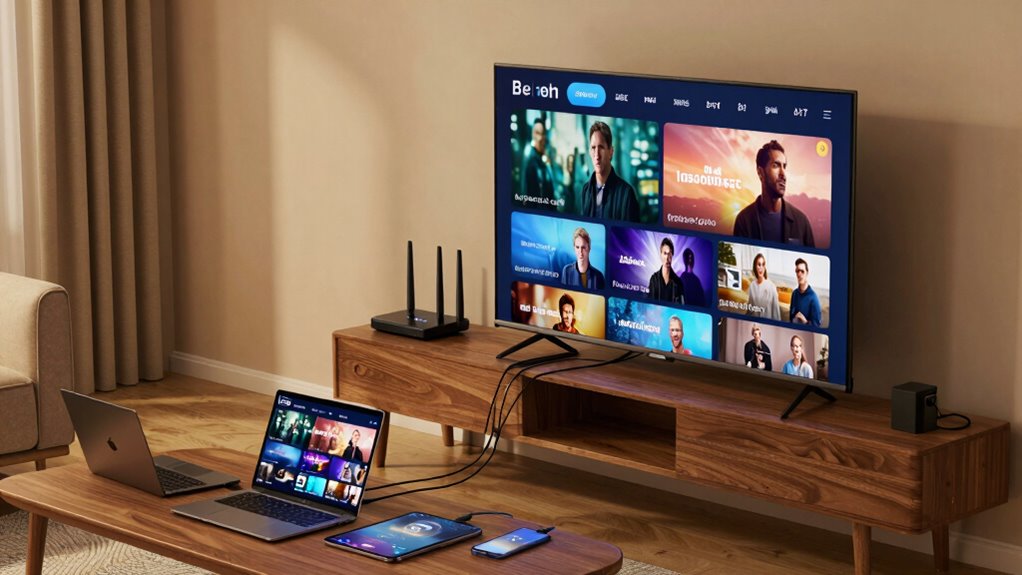

In a streaming-heavy household, your Wi-Fi quality is key to keeping everything running smoothly. Poor connections cause buffering, lag, and dropped streams, ruining your entertainment and online activities. Network congestion and interference from devices or neighbors can make your Wi-Fi slow or unreliable. Improving your setup—like updating your router, choosing better channels, or using wired connections—can boost performance. To discover practical ways to optimize your network and guarantee smooth streaming, keep exploring these solutions.
Key Takeaways
- Reliable Wi-Fi ensures smooth streaming, preventing buffering and lag during binge-watching and online gaming sessions.
- High-quality Wi-Fi reduces connection drops, maintaining a stable experience for multiple devices simultaneously.
- Addressing interference and congestion improves bandwidth availability, supporting high-definition content streaming.
- Upgrading equipment and optimizing placement minimizes signal degradation, enhancing overall streaming quality.
- Consistent Wi-Fi performance prevents frustration and ensures household connectivity for entertainment and communication.
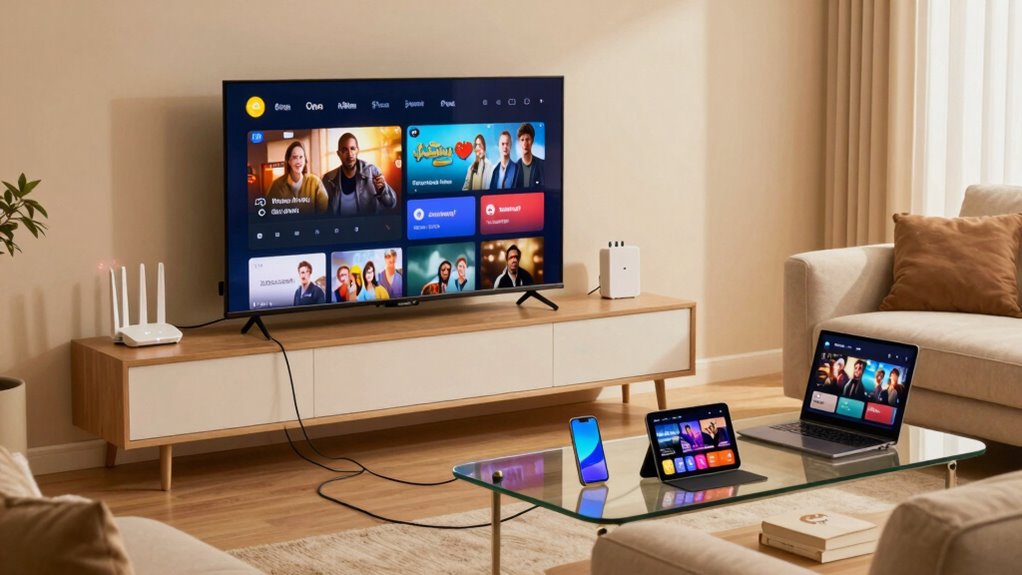
In today’s streaming-driven households, a reliable Wi-Fi connection is essential for smooth entertainment. When you’re binge-watching your favorite shows, participating in video calls, or gaming online, any hiccup in your Wi-Fi can ruin the experience. One of the main issues you might encounter is network congestion, which occurs when multiple devices are vying for the same bandwidth. If everyone in your household is streaming, downloading, or browsing simultaneously, your network can become overwhelmed, causing buffering, lag, or dropped connections. Recognizing this problem helps you understand why your Wi-Fi might be lagging during peak usage times.
Network congestion causes buffering and lag during peak household usage.
Signal interference is another common culprit that can degrade your Wi-Fi quality. This interference happens when other electronic devices or wireless networks operate on the same or overlapping frequencies. For example, if your microwave runs on the same frequency as your Wi-Fi router or if neighboring Wi-Fi networks are nearby, your signal can become disrupted or weakened. This interference reduces the strength and stability of your connection, making it difficult to stream high-definition content without interruptions. Being aware of potential sources of interference allows you to take steps to minimize their impact, such as changing your Wi-Fi channel or relocating your router.
To improve your Wi-Fi quality for streaming, you need to address these issues directly. Upgrading to a higher-capacity router or mesh Wi-Fi system can help manage network congestion by distributing bandwidth more efficiently across devices. Additionally, scheduling heavy downloads or updates during off-peak hours can free up bandwidth when you’re most likely to stream content. Investing in wireless network equipment that supports higher speeds and better interference management can significantly enhance your streaming experience. Regularly updating your router’s firmware is also vital, as manufacturers often release improvements that can help mitigate network congestion and interference issues. Furthermore, understanding signal interference and its sources enables you to better optimize your environment for a more stable Wi-Fi connection. To mitigate signal interference, you might consider moving your router to a central location away from electronic devices that cause interference, or switching to a less crowded Wi-Fi channel through your router’s settings. Using wired Ethernet connections for devices that require high bandwidth can also bypass wireless interference and provide a more stable experience. Understanding wireless network issues can help you identify and resolve common connectivity problems more effectively.
Ultimately, understanding how network congestion and signal interference affect your Wi-Fi allows you to take proactive steps to optimize your setup. When your Wi-Fi is running smoothly, streaming becomes seamless, and you enjoy your entertainment without frustration. Clear, reliable Wi-Fi isn’t just a luxury; it’s a necessity for households that rely heavily on streaming and online activities. By paying attention to these factors and making smart adjustments, you ensure that your household’s entertainment and communication stay uninterrupted, keeping everyone happy and connected.

TP-Link BE6500 Dual-Band WiFi 7 Router (BE400)
- Wi-Fi 7 Technology: Supports Multi-Link Operation and 4K-QAM
- High-Speed Dual-Band: Up to 5764 Mbps on 5GHz, 688 Mbps on 2.4GHz
- Wide Coverage: Covers up to 2,400 sq. ft. for 90 devices
As an affiliate, we earn on qualifying purchases.
As an affiliate, we earn on qualifying purchases.
Frequently Asked Questions
How Can I Test My Wi-Fi Speed Accurately?
To test your Wi-Fi speed accurately, use a reliable speed test tool like Ookla or Fast.com. Make sure you’re close to your router to minimize signal interference, and do the test during different times to check for network congestion. Avoid other devices using bandwidth during testing. This way, you get a clear picture of your actual speed, helping you identify issues that could affect streaming quality.
What Is a Good Router for Streaming Needs?
A good router for streaming needs should support high bandwidth and feature robust Bandwidth prioritization. Look for models with dual or tri-band capabilities to reduce congestion, and place your router centrally in your home, avoiding obstructions. Prioritize your streaming devices through Quality of Service (QoS) settings, ensuring smooth playback. Brands like ASUS, Netgear, and TP-Link offer reliable options that optimize both placement and bandwidth management for seamless streaming experiences.
How Many Devices Can My Wi-Fi Support Simultaneously?
Your Wi-Fi is like a busy highway; it can handle a certain number of cars before traffic jams occur. Typically, a good router supports 20-50 devices simultaneously, but device congestion can strain signal stability. To avoid slowdowns, guarantee your router is designed for high device capacity, and consider upgrading if you notice frequent buffering or dropped connections. Managing device load keeps your streaming smooth and reliable.
Does Wi-Fi Mesh Improve Streaming Quality?
Yes, Wi-Fi mesh systems can improve your streaming quality. They enhance coverage, reduce dead zones, and manage signal interference better, ensuring a stable connection. Plus, many mesh systems are compatible with smart devices, so your entire smart home stays connected smoothly. By spreading out the network load, a mesh system minimizes buffering and lag, making streaming more reliable and enjoyable for everyone in your household.
How Often Should I Update My Wi-Fi Equipment?
You should update your Wi-Fi equipment every 3 to 5 years to guarantee peak performance and security. Regular updates improve wireless security by fixing vulnerabilities and enhance streaming quality, especially in streaming-heavy households. When updating, consider router placement for better coverage and signal strength. Keeping your equipment current helps prevent interruptions, supports multiple devices, and maintains a secure, fast, and reliable internet connection for all your streaming needs.

TP-Link Deco X55 AX3000 WiFi 6 Mesh System – Covers up to 6500 Sq.Ft, Replaces Wireless Router and Extender, 3 Gigabit Ports per Unit, Supports Ethernet Backhaul, Deco X55(3-Pack)
- Wi-Fi 6 Mesh Technology: AX3000 speeds for seamless connectivity
- Wide Coverage: Up to 6500 sq. ft. of Wi-Fi coverage
- Supports Multiple Devices: Connects up to 150 devices reliably
As an affiliate, we earn on qualifying purchases.
As an affiliate, we earn on qualifying purchases.
Conclusion
If your Wi-Fi crashes even once during your favorite show, it’s like a tornado ripping through your living room—chaos and disappointment everywhere. For streaming-heavy households, good Wi-Fi isn’t just a luxury; it’s your secret weapon against endless buffering, frozen screens, and family feuds. Upgrade your internet now, or prepare to live in a never-ending nightmare of lag and frustration. Trust me, your sanity (and your streaming marathons) depend on it!
Wi-Fi Analyzer
- Snapshot of Nearby Wi-Fi Signals: Displays real-time Wi-Fi signal overview
- Five Signal Views: Offers five different signal analysis modes
- Customizable Settings: Adjusts parameters to suit user preferences
As an affiliate, we earn on qualifying purchases.
As an affiliate, we earn on qualifying purchases.
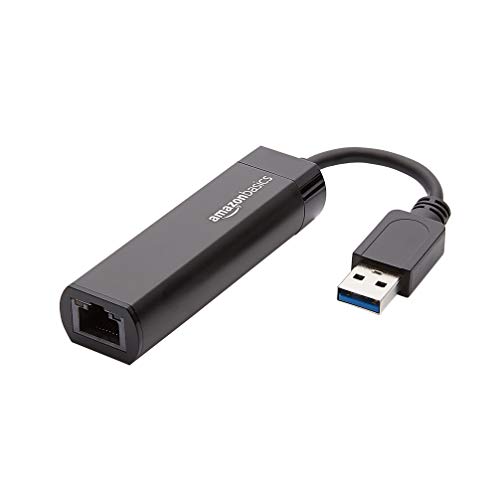
Amazon Basics USB 3.0 to 10/100/1000 Gigabit Ethernet Internet Adapter, Compatible with Windows and macOS, Black
- High-Speed Gigabit Ethernet: Connects USB 3.0 devices to Ethernet networks
- Supports Wake-on-LAN: Enables remote device wake-up
- Energy Efficient Ethernet: Green Ethernet and IEEE 802.3az support
As an affiliate, we earn on qualifying purchases.
As an affiliate, we earn on qualifying purchases.